Overview
Managing attendee meeting schedules is now easier than ever with the enhanced Networking → Meetings → Scheduled Meetings → Print / Download module.
This update introduces a dedicated Meeting Schedule Download experience that allows organisers to centrally manage attendee schedules and configure how meeting schedules are presented before they are downloaded or printed.
Organisers can pre-configure PDF schedule settings, including:
- Meeting statuses to display
- Whether breaks should be shown
- Whether meeting remarks should be included
- Whether unbooked time slots should appear
These enhancements make it easier to provide a professional meeting schedule concierge service onsite, while ensuring attendees receive accurate and personalised schedules throughout the event.
How the Feature Works
The enhanced functionality expands the existing Scheduled Meetings module with an attendee-focused schedule management and download experience.
Organisers can:
- View all networking attendees and their meeting counts in a single location
- Search and filter attendees using standard and custom attendee fields
- Download attendee-specific meeting schedules in PDF format
- Export attendee schedule data to CSV
- Configure which meetings and schedule information appear in downloaded PDFs
- Define meeting breaks and prevent meeting slots from being generated during designated break periods
Key Features
A. Dedicated List of Attendees
A new Attendees tab is available within Scheduled Meetings → Print / Download.
The attendee listing provides a comprehensive overview of all networking participants and displays:
- All attendee master fields
- Project-level custom attendee fields
- Total number of meetings per attendee
- Preview of the meeting PDF document
- Download action
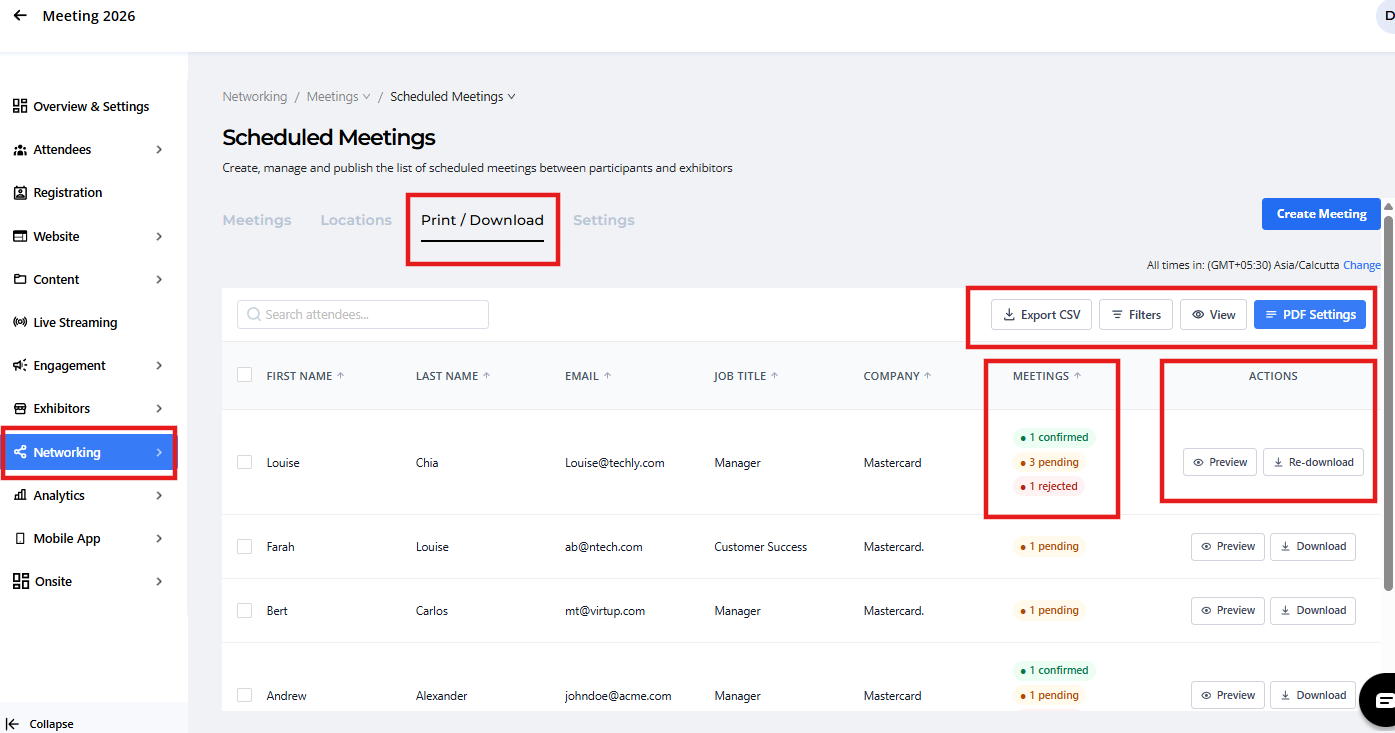
You can customise the attendee listing using the following tools:
Export CSV File
Export attendee information based on the current view, including selected fields and applied filters.
For example:
Filters of fields
Create one or more filter conditions to quickly locate specific attendees.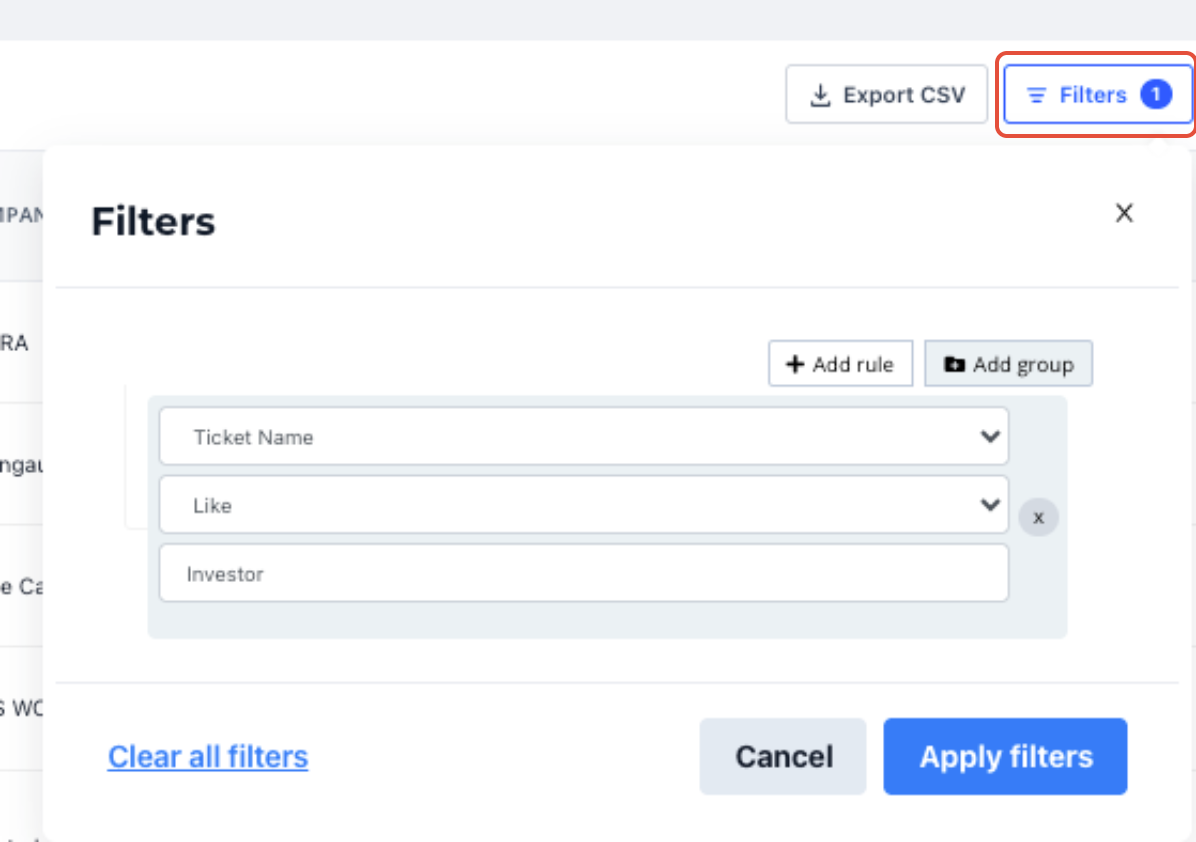
View
Control which fields are displayed by selecting or hiding columns using the visibility (eye) icon.
This allows organisers to focus only on the information most relevant to their workflow.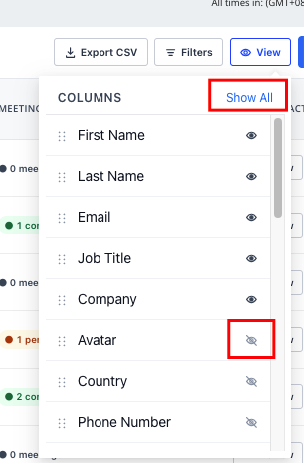
B. Action View
For each attendee, organisers can perform the following actions directly from the attendee list:
- Preview the attendee's Meeting Schedule PDF
- Download the Meeting Schedule PDF
- Re-download previously generated schedules
This allows organisers to quickly access and distribute schedules whenever required.
C. What is presented in the PDF File
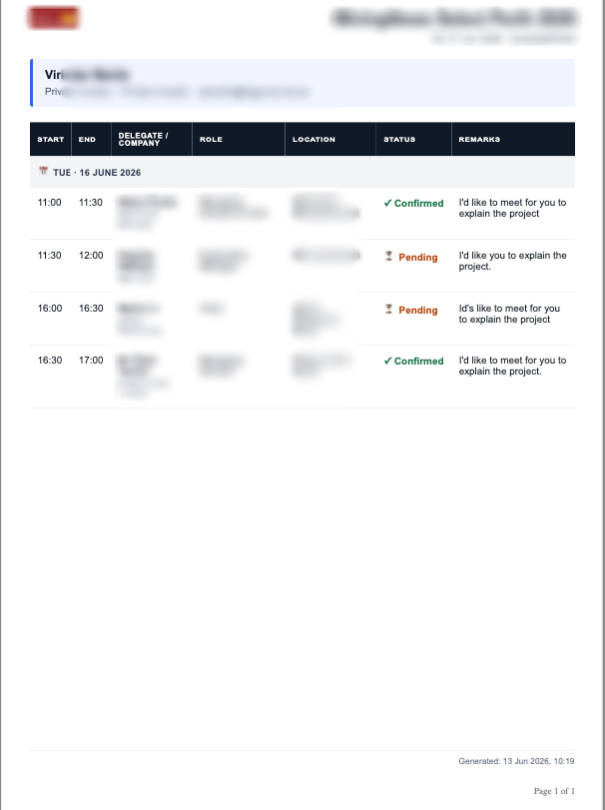
By default, each Meeting Schedule PDF contains the following sections:
Header
- Event logo
- Event name
- Event dates
- Attendee Information (Name, Job Title, Company and Email)
Meeting Schedule
- Date and Time
- Guest information (Name, Company, Job Title)
- Meeting Location
- Meeting Status
- Scheduled breaks (if enabled)
- Meeting remarks (if enabled and available)
Footer
- Schedule generation timestamp
- Page numbering
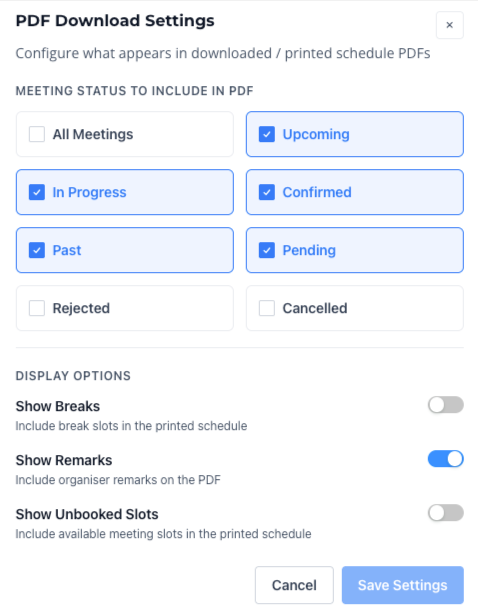
D. PDF Settings
PDF settings are configured once and applied to all future schedule downloads.
Meeting Status Selection
Choose which meeting statuses should be included in exported schedules.
Simply deselect any statuses you wish to exclude. Supported statuses include:
- Confirmed
- Pending
- Cancelled
- Rejected
- Upcoming
- Past
- In Progress
Additional Display Options
Use the toggle controls to determine whether the following information should appear in downloaded schedules:
Show Breaks
Display organiser-defined breaks within the attendee's schedule timeline.
This is configurable under Settings. More information can be found here.
Show Meeting Remarks
Include notes or remarks entered by meeting organisers.
Show Unbooked Slots
Display available time slots that do not contain scheduled meetings.