
Overview
Gevme introduces a powerful new enhancement to the Self Check-In kiosk and mobile experience: Attendee Search.
Traditionally, check-in has relied primarily on QR code scanning. With this update, attendees can optionally search for their registration details using configurable fields such as Name, Email, Company, or Registration ID.
Built with privacy and security in mind, this feature gives event organisers full backend control over:
- Whether search is enabled
- Which fields are searchable
- What information is displayed in the results
- Which fields are partially masked
The result is a more accessible and user-friendly check-in experience - without compromising data privacy or administrative control.
How the Feature Works
By default, the Self Check-In kiosk and mobile mode continue to support QR code scanning only.
When an administrator enables Attendee Search:
- A Search button appears on the check-in interface.
- Attendees can look up their registration using one or more configured search fields.
This provides a convenient alternative for attendees who may not have their QR code readily available.
How to Set it Up
1. Navigate to the Onsite module within your project.
2. Select Deployment.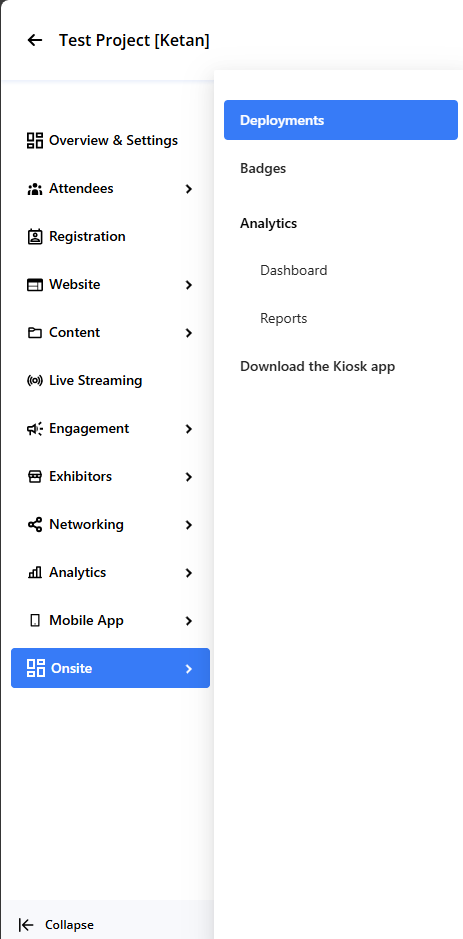
3. Create a new Deployment and complete the required configuration details.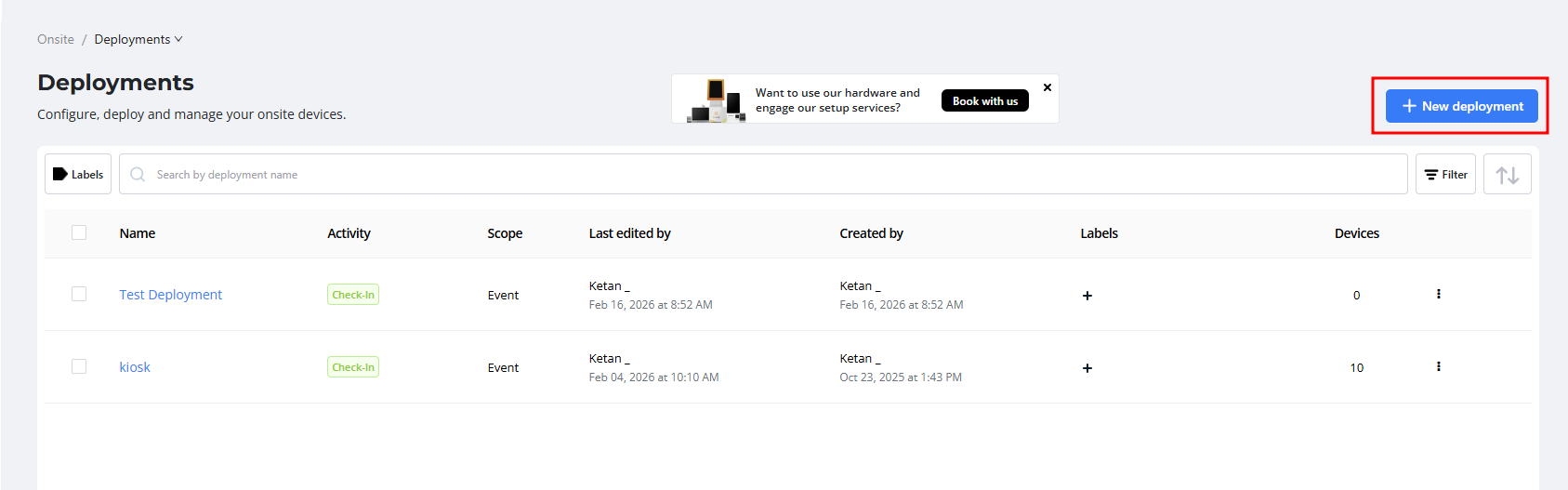
4. Go to Check-in Methods tab and enable the Enable Search in Kiosk Self Check-in option: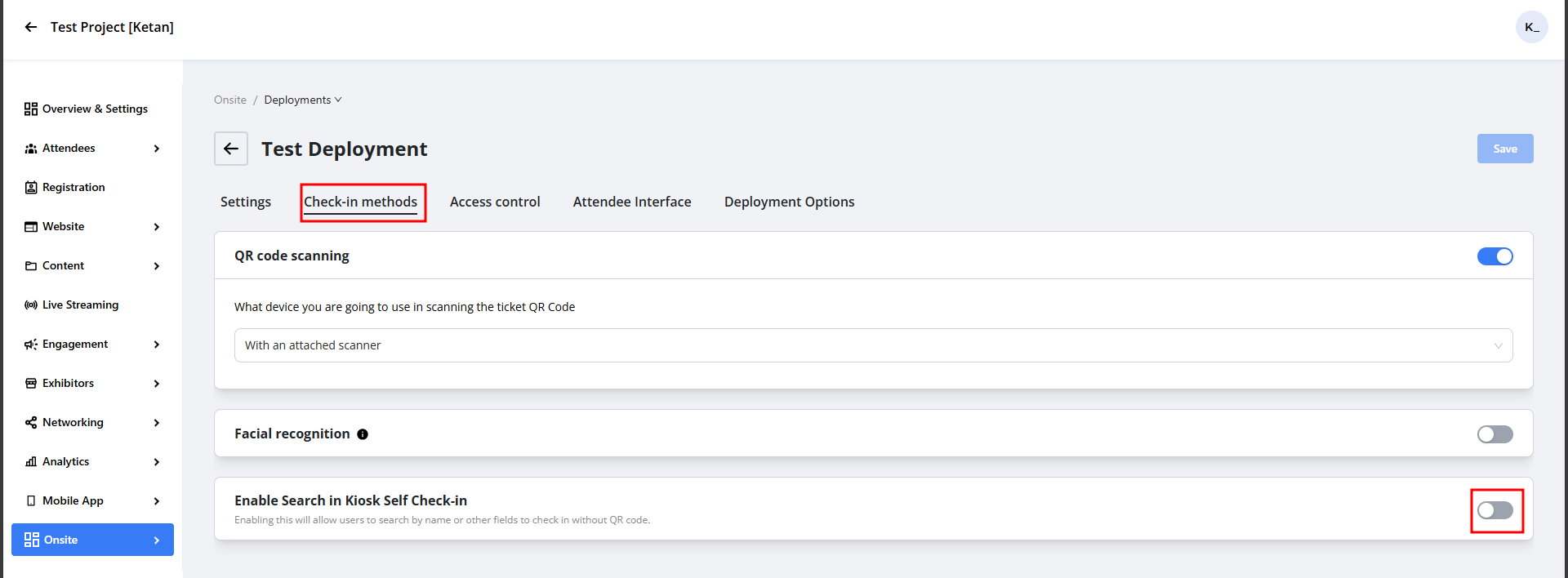
Configuration Options
Once search is enabled, three additional configuration settings become available:
1. Choose Searchable Fields
Select which fields attendees can use to search (e.g., Name, Email, Company, Registration ID).
2. Choose Fields to Display in Search Results
Select which fields will appear in the search results on the check-in screen.
You may also choose Use Same Fields as Searchable Fields for consistency.
3. Choose Fields to Hide Partially in Search Result
Select fields that should be partially masked (e.g., email or phone number) to protect sensitive information while still allowing attendees to identify their registration.
User Experience
The Search option appears on the Self Check-In kiosk or mobile interface once enabled.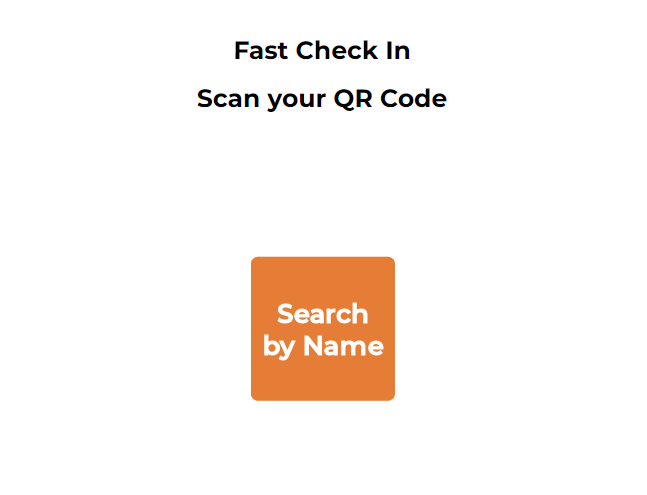
When attendees enter a value for any selected search field, matching results are displayed based on the configured display and masking settings.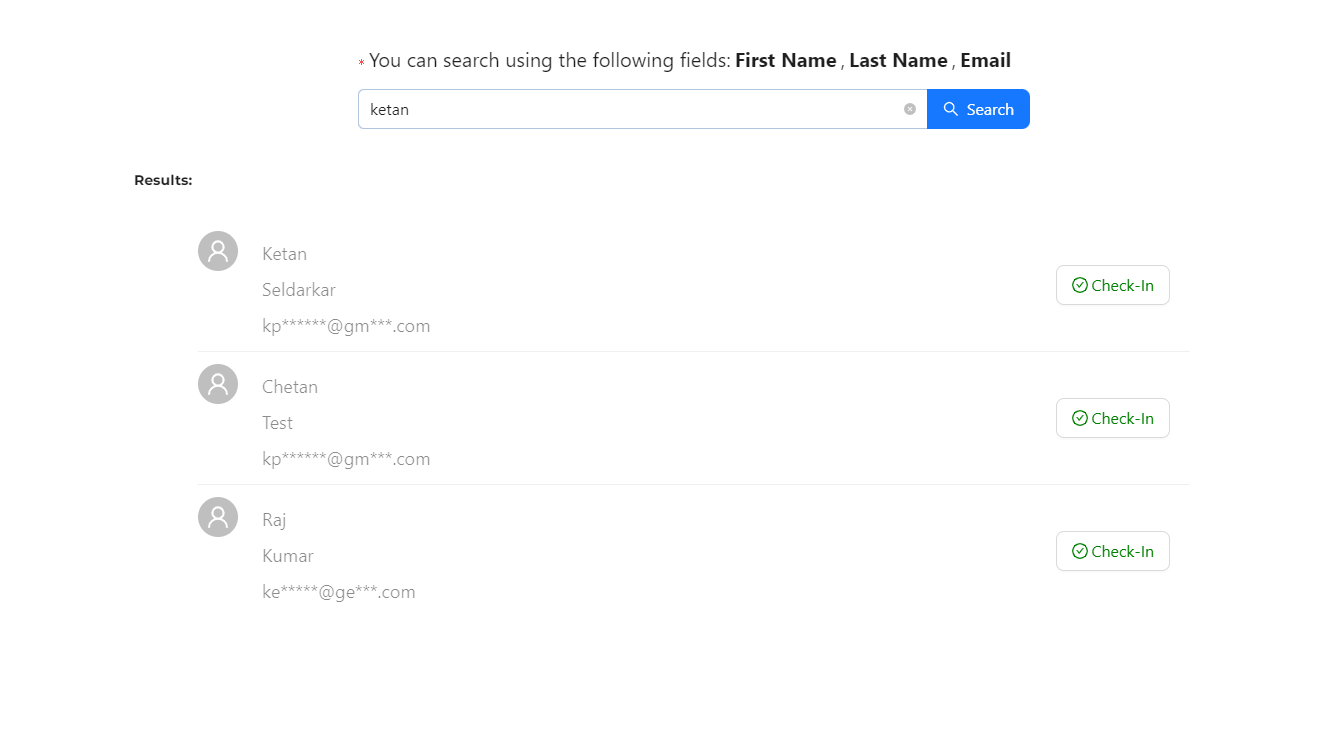
This flexible configuration ensures a balance between usability and data protection, giving organizers complete control while improving the attendee experience.